

Introducing: Pinboard – a place to share news & updates



Related Articles
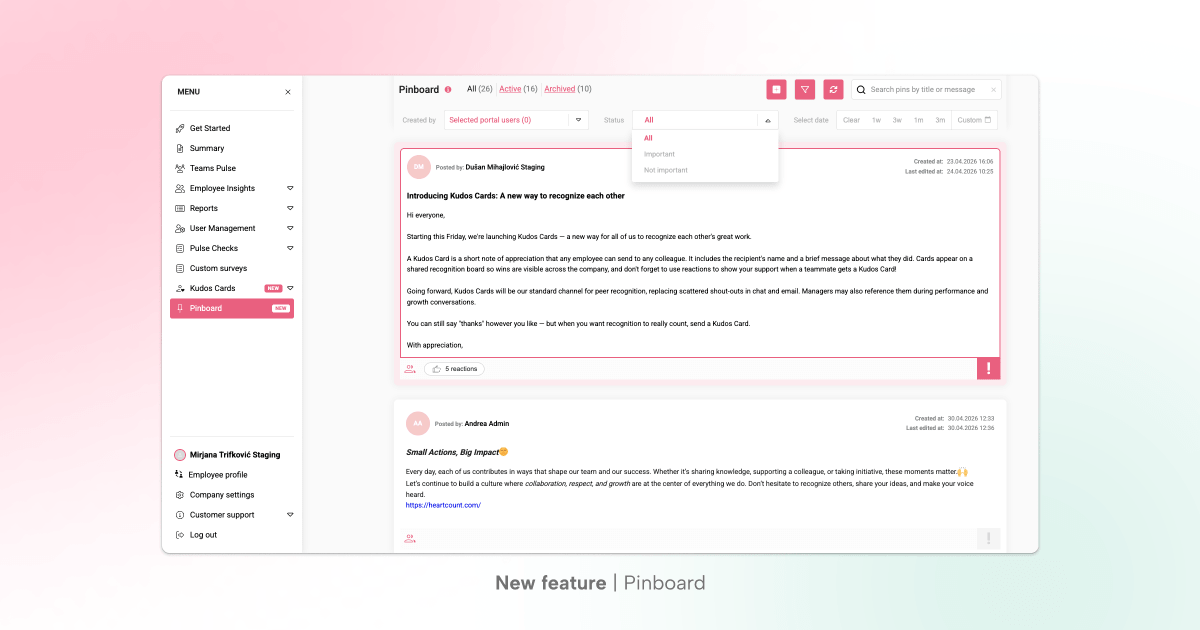
Your company’s dedicated communication hub – one place to share reminders, policy updates, team news, and announcements, delivered to the right people on time.
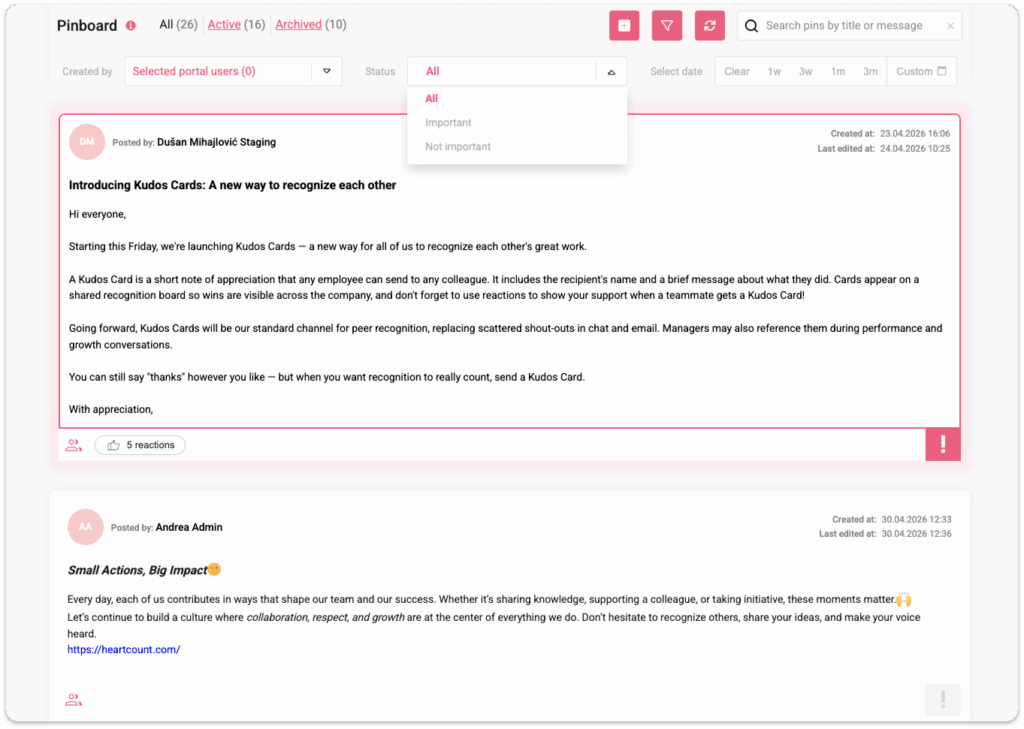
What Pinboard does
Pinboard allows you to:
- Publish targeted posts – Send pins to everyone, or narrow by team, individual, or label.
- Preview posts before sending – See exactly who will receive a pin before you post it to avoid mistakes.
- Mark important pins – Mark high-priority posts so they appear at the top and stand out visually.
- See reactions – Employees can acknowledge and react to pins, giving you a pulse on their views and opinions.
How posting a pin works
Creating and sending a pin takes just a few steps:
- Step 1: Open Pinboard in the portal and click Post new pin. Write your title and message – formatting, links, and emojis are all supported.
- Step 2: Choose your audience: all employees (the default), or filter by team, individual, or label. Use Preview recipients to confirm exactly who will see the pin before posting
- Step 3: Post it now or schedule it for later. The recipient list is locked at that moment – future team changes won’t affect past pins.
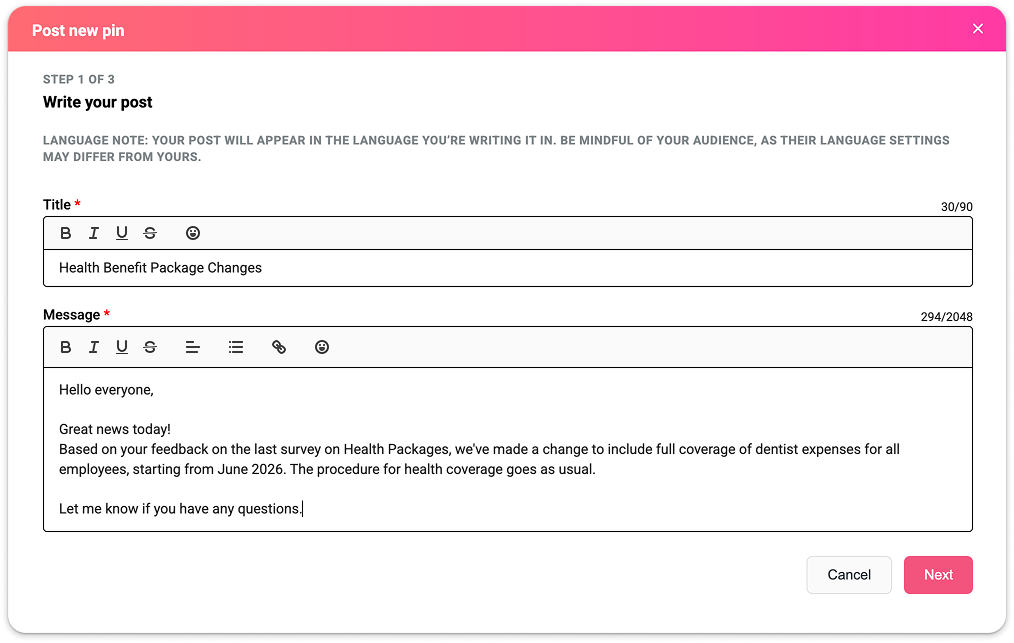
💡Once a pin is live, you can still edit the title, message, or importance level – and archive it when it’s no longer needed. Archived pins can be unarchived and reactivated at any time.
Flexible audience targeting
You choose who sees each pin:
- All employees (default) – posts to your entire workforce instantly.
- Teams – only members active in that team at the time of posting will receive the pin.
- Individuals – pin goes directly to the employees you select.
- Labels – reach all employees who match the label and condition at the time of posting.
- Combinations – mix teams, individuals, and labels. When labels are combined with teams or individuals, they act as a filter, so only employees who match the label will be included.
Who can do what
| Admins & enabled managers | Employees |
| Create, edit, and manage pins | See only pins addressed to them |
| Mark pins as Important | Browse All and Unread tabs |
| Archive and unarchive pins | Filter pins by date |
| See who received each pin | React to pins |
| View employee reactions | See other employees’ reactions |
| Search, filter, and browse all pins |
💡Admins have Pinboard access automatically. To allow Managers to post pins, go to Company Settings and toggle on “Managers can create a post on Pinboard”. This is disabled by default.
Got news to share? Try the Pinboard now to tell employees a new place to share info has just dropped!
Related Articles